

Facturation
Créez des factures à partir du temps et des dépenses non facturés d'un dossier, envoyez-les à votre client et enregistrez les paiements dès réception des fonds. Tout se passe sur le dossier, sous l'onglet Facturation → Factures.
Le travail suit un flux unidirectionnel : le temps et les dépenses restent non facturés jusqu'à ce qu'une facture soit générée à partir de ceux-ci. La facture commence sous forme de brouillon que vous pouvez modifier. Lorsque vous la finalisez, elle reçoit un numéro et se trouve verrouillée. Vous l'envoyez par e-mail, le client paie en dehors de Flow (généralement par virement bancaire), et un propriétaire ou un administrateur enregistre le paiement.
Avant votre première facture sur un dossier#
Vérifiez deux points sur le dossier :
- Informations de facturation (sous Facturation) : le destinataire de la facture, l'e-mail de facturation auquel sont envoyés les factures et les rappels, l'adresse du client, son pays, son numéro d'identification fiscale et ses conditions de paiement, ainsi que la devise du dossier. Les coordonnées du client sont modifiées sur la page de contact du client (Modifier sur la fiche client) ; si le client n'en possède pas encore, cliquez sur Configurer la facturation du client. Voir Comptes clients.
- Type d'honoraires (sous Factures) : ce que Nouvelle facture inclut sur la facture. Cliquez sur Enregistrer à côté. Si vous oubliez, Nouvelle facture l'enregistre automatiquement au préalable.
| Type d'honoraires | Ce que Nouvelle facture facture |
|---|---|
| À l'heure | Tout le temps facturable non facturé, ainsi que les dépenses |
| Forfait | Le montant forfaitaire, une seule fois par dossier, plus les dépenses. Le temps enregistré sur le dossier n'est pas facturé |
| Au résultat | Le pourcentage convenu du Montant récupéré que vous saisissez à côté de Nouvelle facture, une seule fois par dossier, plus les dépenses. Laissé vide, le brouillon ne contient que les dépenses. Le temps n'est pas facturé |
| Hybride | Le montant forfaitaire (une fois) et tout le temps non facturé, plus les dépenses |
Un honoraire forfaitaire ou au résultat ne figure que sur une seule facture. Si vous annulez cette facture, les honoraires peuvent être facturés à nouveau.
Éviter les erreurs lors de la première facture#
La plupart des problèmes rencontrés lors d'une première facture proviennent d'une étape ignorée lors de la configuration. Vérifiez ces éléments avant de cliquer sur Finaliser :
- Taux. Le temps sans taux affiche Taux manquant et est exclu de la facture. Définissez le taux par défaut et les taux des collaborateurs dans Paramètres → Facturation et taux ; les enregistrer valorise automatiquement le temps déjà saisi.
- Devise. Vérifiez la devise de votre cabinet avant que quiconque ne saisisse du temps, et définissez la devise du dossier de chaque client étranger avant le début des travaux. Dès que des travaux valorisés existent dans une devise, la devise du dossier ne peut plus être modifiée tant que ces travaux ne sont pas facturés ou supprimés. Voir Facturer dans une autre devise.
- Taux dans la bonne devise. Un dossier facturé en livres nécessite des taux en livres (les Taux de facturation du client) ou un taux spécifique forcé sur chaque saisie. Les taux en euros ne s'appliquent pas.
- Taxe pour les clients étrangers. Si le brouillon affiche la mention de taxe transfrontalière, définissez le % de taxe et une mention selon les conseils de votre comptable.
- Instructions de paiement. Remplissez-les au préalable : une facture émise conserve les instructions avec lesquelles elle a été générée.
- E-mail de facturation. Vérifiez-le dans les Informations de facturation du dossier : les factures et les rappels y sont envoyés, et sans e-mail, ils ne peuvent être transmis. Modifiez-le sur la page de contact du client.
- Type d'honoraires. Les dossiers au forfait et au résultat ne facturent pas le temps. Choisissez À l'heure ou Hybride si le temps passé doit être facturé.
- Préfixe du numéro de facture. Définissez-le avant votre première facture ; les numéros émis ne changent jamais.
- Dossier d'exemple. N'émettez pas de véritables factures et n'enregistrez pas de règlements clients sur le dossier d'exemple. Voir Premiers pas.
Créer un brouillon#
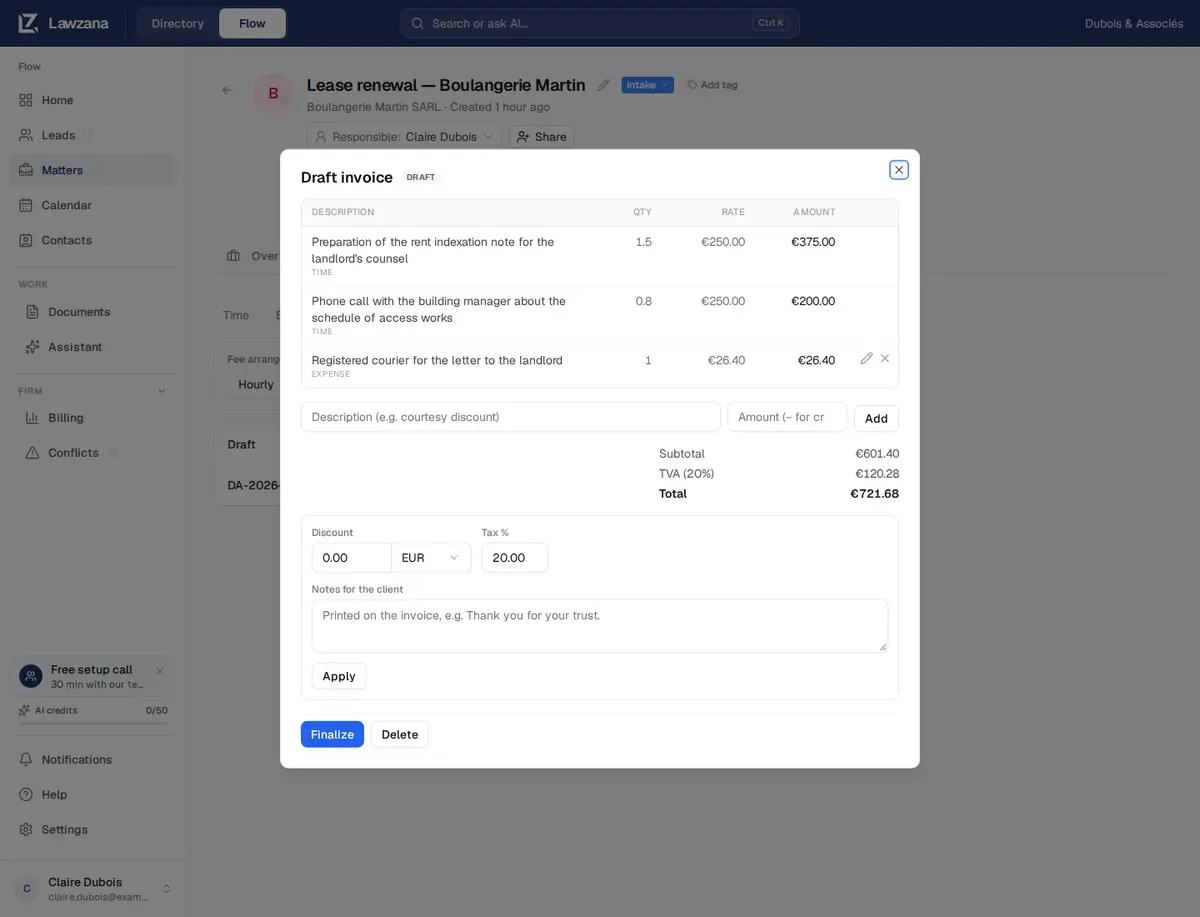
Cliquez sur Nouvelle facture. Flow crée un brouillon à partir de tous les éléments non facturés du dossier, selon le type d'honoraires, dans la devise du dossier et avec votre taux de taxe par défaut. Si un élément a été laissé de côté, Flow en indique la raison, par exemple « 1 saisie sans taux a été laissée non facturée » ou « 1 saisie en GBP n'a pas été incluse : cette facture est en EUR ». S'il n'y a rien à facturer, vous verrez Rien à facturer sur ce dossier pour l'instant.
Créer un brouillon ne marque aucun élément comme facturé. Cela ne se produit qu'au moment de la finalisation.
Modifier un brouillon#
Tant qu'une facture est à l'état de brouillon, vous pouvez :
- Modifier le libellé d'une ligne. Cliquez sur le crayon, effectuez la modification, puis cliquez sur Enregistrer la ligne. Les lignes de temps et de dépenses facturent exactement ce qui a été saisi ; seule leur description peut donc être changée. Pour facturer moins, ajoutez un ajustement ou une remise, ou rectifiez la saisie de temps et générez à nouveau la facture.
- Modifier une ligne de forfait ou d'ajustement. Sa description, sa quantité et son taux peuvent tous être modifiés.
- Supprimer une ligne à l'aide de la croix ×. Le temps ou la dépense repasse à l'état non facturé pour une facture ultérieure.
- Ajouter un ajustement. Saisissez une description et un montant, puis cliquez sur Ajouter. Un montant négatif correspond à un avoir, par exemple « Geste commercial » à −100.
- Définir une remise sous forme de montant fixe ou de pourcentage du sous-total. Un pourcentage s'ajuste au sous-total si les lignes changent. La remise est appliquée avant la taxe.
- Définir le % de taxe. Un taux unique pour toute la facture, pré-rempli à partir de vos paramètres.
- Ajouter des Notes pour le client. Elles s'impriment au bas de la facture.
Cliquez sur Appliquer après avoir modifié la remise, la taxe ou les notes. Supprimer supprime le brouillon ; son temps et ses dépenses restent non facturés. Les factures émises ne peuvent pas être supprimées : un propriétaire ou un administrateur doit les annuler ou les passer en créance irrécouvrable (voir ci-dessous).
Finalisation#
Il n'y a pas d'aperçu distinct, prenez donc soin de relire le brouillon avant de cliquer sur Finaliser. Si le total ou une ligne quelconque est à zéro, Flow demande confirmation au préalable et en indique la raison (lignes sans taux, remise annulant le montant ou lignes qui se compensent). La finalisation entraîne les actions suivantes :
- Attribue à la facture le numéro suivant : votre préfixe plus quatre chiffres, par exemple
INV-0001. Les numéros ne sont jamais réutilisés, même si la facture est annulée par la suite - Définit la date d'émission à aujourd'hui et la date d'échéance selon les conditions de paiement du client (ou celles de votre cabinet)
- Fige les détails de facturation et les instructions de paiement dans leur état actuel, de sorte que les modifications ultérieures n'altèrent pas une facture déjà émise
- Verrouille les lignes et marque le temps ainsi que les dépenses comme Facturé
Si des modifications sont survenues depuis la création du brouillon (une saisie modifiée, supprimée ou facturée sur une autre facture), la finalisation est refusée et Flow vous invite à recréer le document. Supprimez le brouillon et cliquez à nouveau sur Nouvelle facture.
Envoi au client#
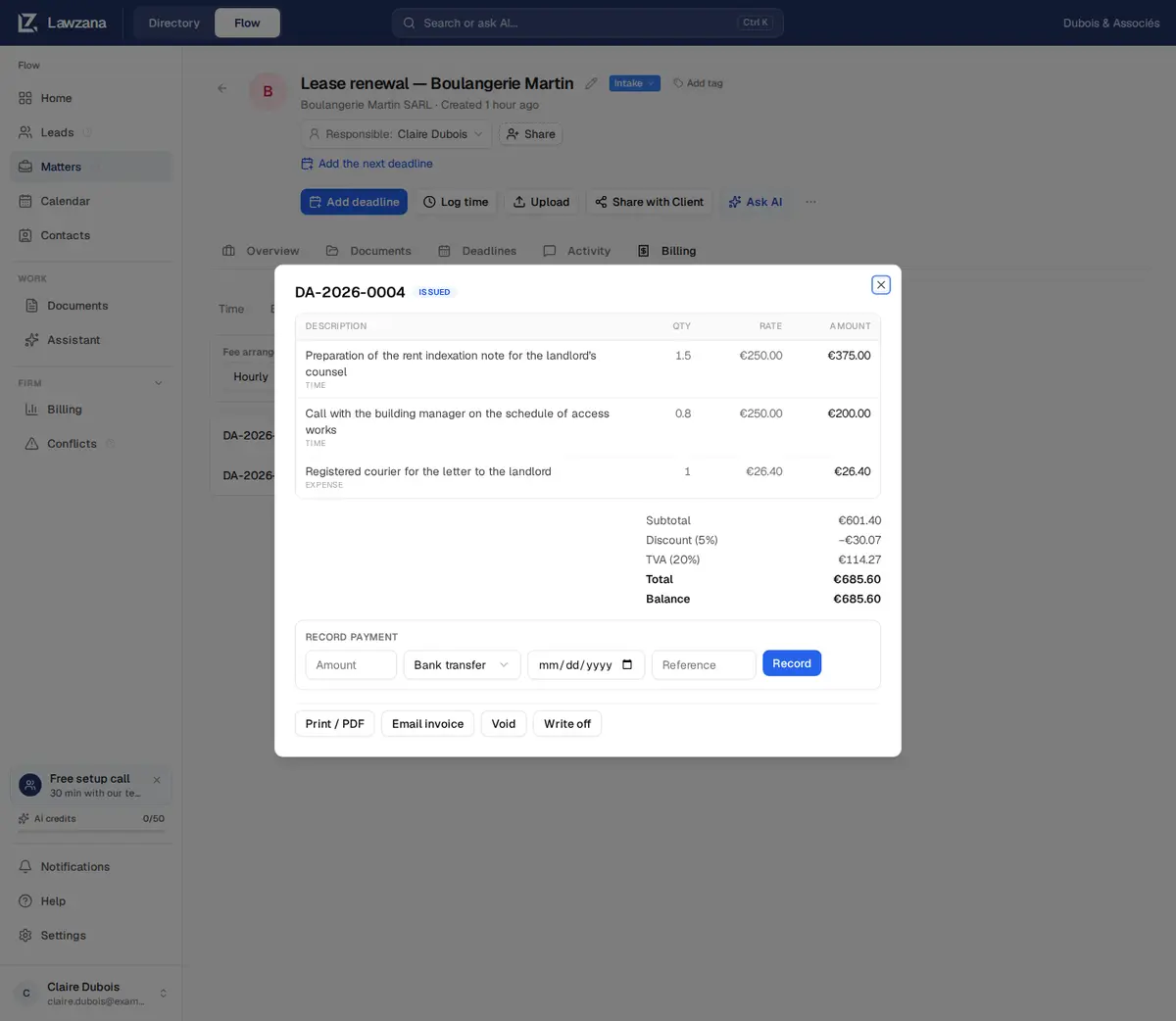
Une fois la facture finalisée, vous pouvez :
- Imprimer / PDF : une page imprimable soignée comportant les coordonnées de votre cabinet et son numéro d'identification fiscale, l'adresse de facturation, les dates, les lignes, les totaux, les instructions de paiement et les notes
- Envoyer par e-mail : Flow affiche d'abord le destinataire, puis envoie au client par e-mail un lien vers une page sécurisée où il peut consulter et télécharger la facture, sans avoir à se connecter
L'e-mail est envoyé à l'adresse de facturation figurant dans les Informations de facturation du dossier ; s'il n'y en a pas, ajoutez-en une au préalable dans la carte Informations de facturation sur la fiche de contact du client. Le nom de votre cabinet apparaît comme expéditeur, et les réponses sont adressées à la personne qui a envoyé l'e-mail. Ce message est rédigé dans la langue de l'expéditeur (anglais, espagnol ou français), et la page du client s'ouvre en anglais, espagnol ou français selon la langue du navigateur du client. Vous pouvez renvoyer le document à tout moment. Une facture payée est envoyée sous forme de reçu. Les brouillons, les factures annulées et celles passées en créances irrécouvrables ne peuvent pas être envoyés par e-mail.
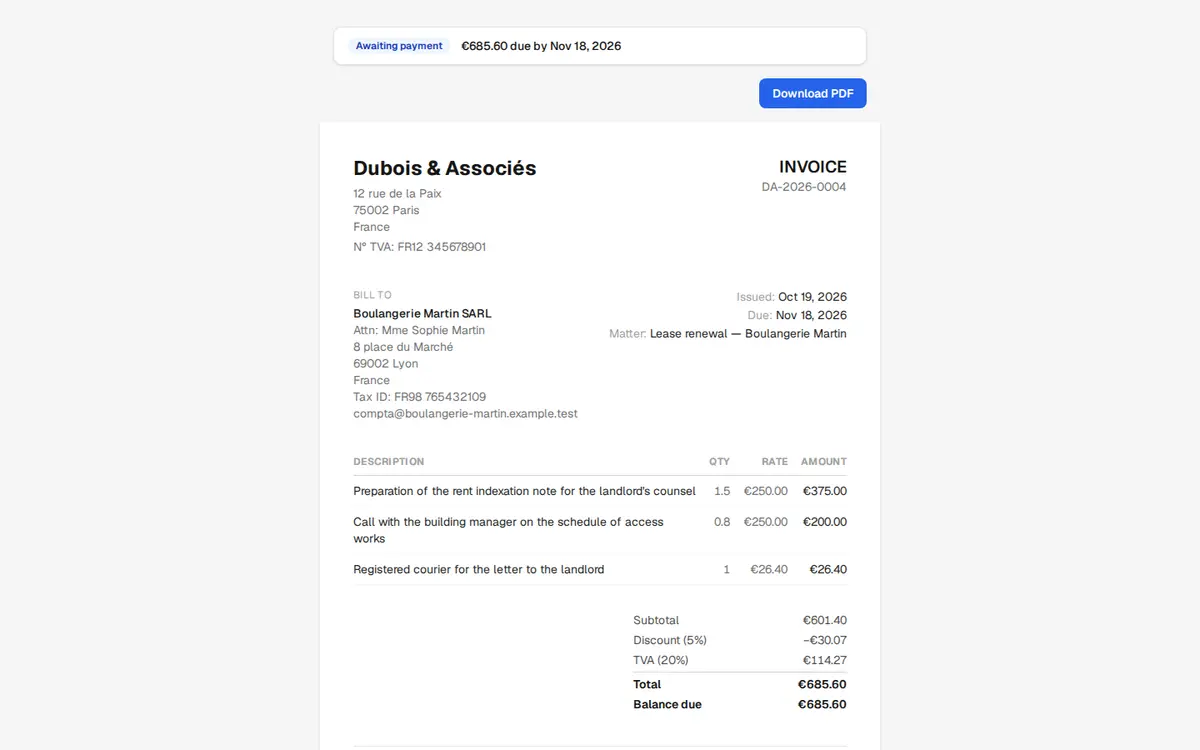
La page du client s'ouvre en affichant le statut de la facture :
| Facture | Ce que voit le client |
|---|---|
| Émise | En attente de paiement, avec le montant et la date d'échéance |
| Partiellement payée | Le solde restant dû |
| Payée | « Payée dans son intégralité. Merci. » |
| Annulée | « Cette facture a été annulée. Aucun montant n'est dû. » |
| Passée en perte | Clôturée : « Cette facture est clôturée. Plus rien n'est dû. » |
Les brouillons ne sont jamais visibles pour le client. Le bouton Télécharger le PDF présent sur cette page ouvre la boîte de dialogue d'impression du navigateur, où le client sélectionne Enregistrer au format PDF.
Enregistrement des règlements#
Flow ne prend pas en charge les paiements en ligne par carte bancaire. Les clients effectuent leurs règlements à l'aide des instructions de paiement figurant sur la facture, et un propriétaire ou un administrateur enregistre chaque paiement. Sur une facture émise ou partiellement payée, complétez Enregistrer un paiement et cliquez sur Enregistrer :
- Montant, dans la devise de la facture
- Le mode de paiement : Virement bancaire, Espèces, Carte (hors ligne) ou Autre
- La date à laquelle les fonds ont été reçus : aujourd'hui si le champ est laissé vide ; les dates postérieures de plus d'une journée sont refusées
- Référence : la référence de virement de la banque est idéale
Les paiements partiels sont acceptés : la facture passe au statut Partiellement payée et liste chaque règlement avec sa référence. Dès que les règlements atteignent le montant total, elle passe à Payée et ne peut plus recevoir de paiement.
Si vous saisissez un montant supérieur au solde restant dû, Flow affiche l'avertissement Montant supérieur au solde dû avant de l'enregistrer. Il s'agit généralement d'une faute de frappe, cliquez donc sur Annuler ; ne cliquez sur Enregistrer quand même que si le client a réellement versé un trop-perçu.
Si la banque a prélevé des frais et que le montant perçu est inférieur au montant dû, enregistrez le montant effectivement reçu. Consultez votre comptable pour savoir s'il convient de réclamer le reliquat ou de le passer en perte.
Rectifier un paiement#
Si vous avez saisi un montant erroné, un propriétaire ou un administrateur clique sur la croix × à côté du paiement et confirme l'opération par Supprimer ce paiement ?. Le solde est alors recalculé, et une facture payée repasse à l'état Partiellement payée ou Émise. Vous pouvez ensuite enregistrer le montant exact. Les paiements enregistrés sur une facture annulée ou passée en créance irrécouvrable ne peuvent pas être modifiés.

Rappels de paiement#
Sur une facture émise ou partiellement payée avec un solde dû, cliquez sur Envoyer une relance à côté de Envoyer par e-mail. Flow indique qui recevra le message, le numéro de facture, le solde restant et la date de la dernière relance. L'e-mail précise le solde, rappelle la date d'échéance ou le nombre de jours de retard, et contient un lien vers la page du client. Les propriétaires et administrateurs peuvent également utiliser le bouton Relancer dans la liste des factures impayées du Tableau de bord de facturation.
Chaque facture ne peut faire l'objet que d'une seule relance par tranche de 24 heures, quel que soit l'endroit d'où elle est envoyée. Si vous essayez de renouveler l'envoi plus tôt, rien n'est expédié et Flow vous indique l'heure de la dernière relance. Après l'envoi, la mention Relancé accompagnée de la date et de l'heure apparaît à côté du bouton.
Pourquoi une relance ne part pas#
- Une relance a déjà été envoyée au cours des dernières 24 heures. Flow vous indique l'heure correspondante ; réessayez une fois ce délai écoulé.
- Il n'y a pas d'e-mail de facturation. Ajoutez-en un dans la carte Informations de facturation sur la page de contact du client.
- La facture n'est plus impayée. Elle a été réglée, annulée ou passée en perte depuis le chargement de la page.
- Le bouton Envoyer une relance n'apparaît pas. Il n'est visible que sur les factures émises ou partiellement payées présentant un solde dû, et uniquement pour les personnes autorisées à modifier le dossier (pas pour les lecteurs ou les partages en lecture seule).
Passer en perte et Annuler#
Ces deux actions sont réservées aux propriétaires et aux administrateurs, demandent une confirmation préalable et sont irréversibles.
- Passer en perte clôture une facture émise ou partiellement payée et abandonne le montant restant impayé. À n'utiliser que pour les sommes que vous ne parviendrez pas à recouvrer. La facture reste comptabilisée comme facturée dans vos rapports, et la part impayée diminue votre taux de recouvrement.
- Annuler annule une facture émise sur laquelle aucun paiement n'a été enregistré. Elle reste conservée dans votre historique avec la mention Annulée et son numéro n'est jamais réutilisé. Le temps et les dépenses qui y figuraient repassent au statut non facturé, les honoraires forfaitaires ou au résultat peuvent être facturés à nouveau, et le lien du client indique la facture comme annulée avec un montant dû nul. Si un paiement a été enregistré par erreur, supprimez-le d'abord.
Pour rectifier une facture émise, annulez-la, ajustez le temps, les dépenses ou les informations de facturation, puis cliquez à nouveau sur Nouvelle facture. La nouvelle facture recevra le numéro suivant.
Statuts d'une facture#
| Statut | Signification |
|---|---|
| Brouillon | En cours de préparation et entièrement modifiable. Non visible par le client |
| Émise | Finalisée, numérotée et verrouillée ; en attente de paiement |
| Partiellement payée | Partiellement réglée ; un solde reste dû |
| Payée | Entièrement réglée |
| Passée en perte | Clôturée, avec abandon du solde impayé |
| Annulée | Annulée ; les prestations repassent à l'état non facturé |
Qui peut faire quoi#
Les propriétaires, administrateurs et membres ayant accès au dossier peuvent définir le type d'honoraires et la devise du dossier, modifier les coordonnées de facturation d'un client, créer, éditer et supprimer des brouillons, finaliser les factures, les envoyer par e-mail et émettre des relances. L'enregistrement ou la suppression de paiements, le passage en perte et l'annulation sont réservés aux propriétaires et aux administrateurs. Les lecteurs peuvent consulter les factures et ouvrir Imprimer / PDF. Voir Équipe et rôles.
Ce que Flow ne gère pas encore#
- Un seul taux de taxe par facture. Pas de taxe par ligne ou par client, et pas de retenue à la source. Si deux taux s'appliquent, émettez deux factures distinctes.
- Pas d'avoirs ni de factures d'acompte. Voir la FAQ pour les solutions de contournement.
- Pas de paiements en ligne. Les clients paient par virement bancaire ou par un autre moyen en dehors de Flow.
- Pas de formats de facturation électronique tels que Factur-X, Verifactu ou CFDI, ni de facturation récurrente ou groupée.
- Date de facture non modifiable. La date d'émission correspond au jour de la finalisation.
- Pas de conversion de devises. Voir Facturer dans une autre devise.