

Invoicing
Build invoices from a matter's unbilled time and expenses, send them to your client, and record payments when the money arrives. Everything happens on the matter, under the Billing tab → Invoices.
Work moves in one direction: time and expenses stay unbilled until an invoice is built from them. The invoice starts as a draft you can edit. When you finalize it, it gets a number and is locked. You email it, the client pays outside Flow (usually by bank transfer), and an owner or admin records the payment.
Before Your First Invoice on a Matter#
Check two things on the matter:
- Billing details (under Billing): who the invoice is addressed to, the billing email that invoices and reminders go to, the client's address, country, tax ID and payment terms, and the matter's currency. The client's details are edited on the client's contact page (Edit on client page); if the client has none yet, click Set up client billing. See Client Accounts.
- Fee arrangement (under Invoices): what New invoice puts on the invoice. Click Save next to it. If you forget, New invoice saves it first.
| Fee arrangement | What New invoice bills |
|---|---|
| Hourly | All unbilled billable time, plus expenses |
| Flat fee | The flat fee, once per matter, plus expenses. Time logged on the matter is not billed |
| Contingency | The agreed percentage of the Amount recovered you enter next to New invoice, once per matter, plus expenses. Left empty, the draft holds only the expenses. Time is not billed |
| Hybrid | The flat fee (once) and all unbilled time, plus expenses |
A flat or contingency fee goes on one invoice only. If you void that invoice, the fee can be billed again.
Avoiding First-Invoice Mistakes#
Most problems with a first invoice come from a step skipped during set-up. Check these before you click Finalize:
- Rates. Time with no rate shows Needs rate and is left off the invoice. Set the default and staff rates in Settings → Invoicing & rates; saving them prices the time already logged.
- Currency. Check your firm's currency before anyone logs time, and set each foreign client's matter currency before work starts. Once priced work exists in a currency, the matter's currency can't change until that work is billed or deleted. See Billing in Another Currency.
- Rates in the right currency. A matter billed in pounds needs rates in pounds (the client's Billing rates) or a rate override on each entry. Euro rates don't apply.
- Tax for foreign clients. If the draft shows the cross-border tax note, set the Tax % and a note as your accountant advises.
- Payment instructions. Fill them in first: an issued invoice keeps the instructions it was issued with.
- Billing email. Check it in the matter's Billing details: invoices and reminders go there, and without an email they can't be sent. Change it on the client's contact page.
- Fee arrangement. Flat-fee and contingency matters don't bill time. Choose Hourly or Hybrid if time should be invoiced.
- Invoice number prefix. Set it before your first invoice; issued numbers never change.
- Sample matter. Don't issue real invoices or record client money on the sample matter. See Getting Started.
Building a Draft#
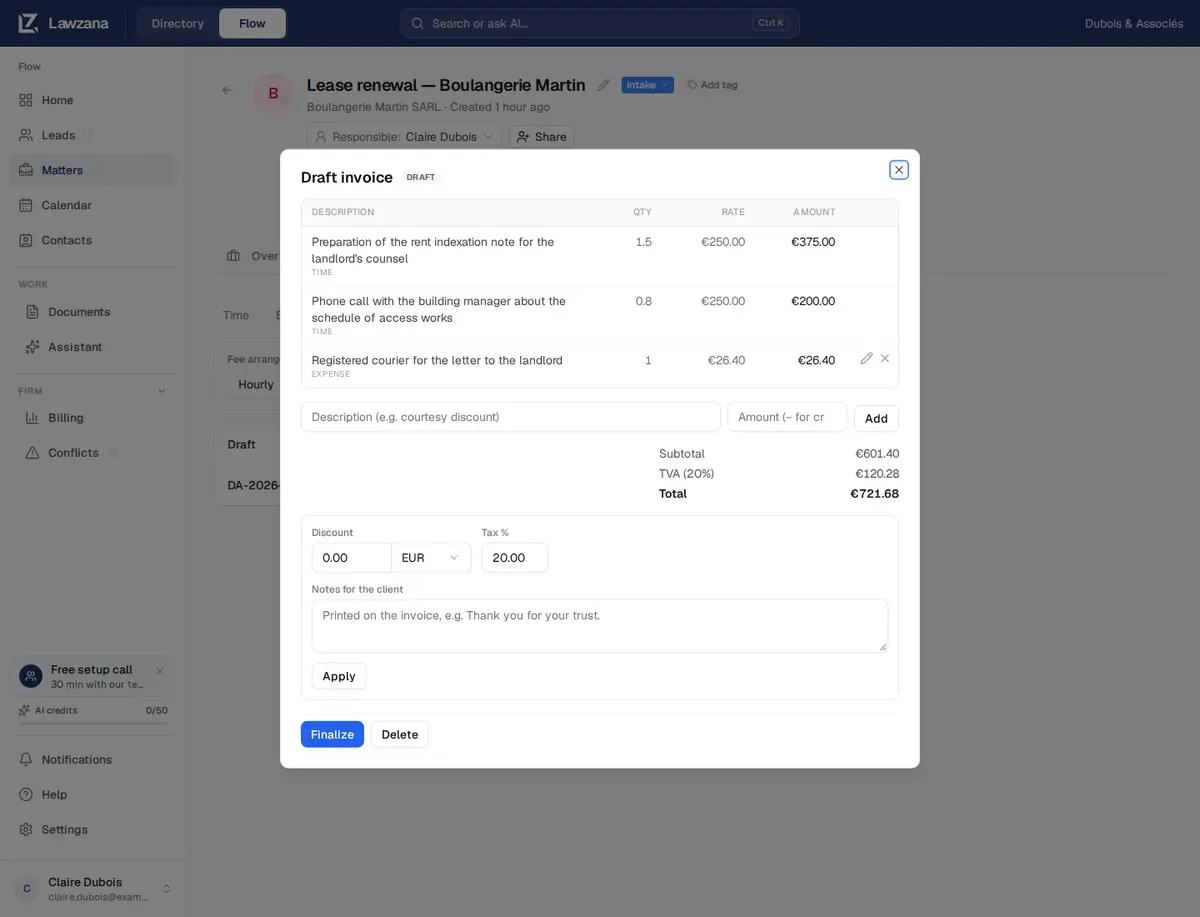
Click New invoice. Flow builds a draft from everything unbilled on the matter, following the fee arrangement, in the matter's currency, with your default tax rate. If something was left out, Flow says why, for example "1 unrated entry was left unbilled" or "1 entry in GBP was not included: this invoice is in EUR". If there is nothing to bill, you see Nothing to bill on this matter yet.
Building a draft doesn't mark anything as billed. That only happens when you finalize.
Editing a Draft#
While an invoice is a draft you can:
- Change a line's wording. Click the pencil, edit, then Save line. Time and expense lines bill exactly what was recorded, so only their description can change. To bill less, add an adjustment or a discount, or fix the time entry and build the invoice again.
- Change a flat-fee or adjustment line. Its description, quantity and rate can all change.
- Remove a line with the ×. The time or expense goes back to unbilled for a later invoice.
- Add an adjustment. Type a description and an amount, then click Add. A negative amount is a credit, for example "Courtesy discount" at −100.
- Set a discount as an amount or as a percentage of the subtotal. A percentage follows the subtotal if lines change. The discount is applied before tax.
- Set the Tax %. One rate for the whole invoice, filled in from your settings.
- Add Notes for the client. They're printed at the bottom of the invoice.
Click Apply after changing the discount, tax or notes. Delete removes the draft; its time and expenses stay unbilled. Issued invoices can't be deleted: an owner or admin voids or writes them off instead (see below).
Finalizing#
There is no separate preview, so read the draft before you click Finalize. If the total or any line is zero, Flow asks first and says why (lines with no rate, a discount that brings it to zero, or lines that cancel out). Finalizing:
- Gives the invoice the next number: your prefix plus four digits, for example
INV-0001. Numbers are never reused, even if the invoice is voided later - Sets the issue date to today and the due date from the client's payment terms (or your firm's)
- Freezes the bill-to details and payment instructions as they are now, so later changes don't alter an issued invoice
- Locks the lines and marks the time and expenses as Billed
If something changed since the draft was built (an entry edited, deleted or billed on another invoice), Finalize refuses and asks you to rebuild. Delete the draft and click New invoice again.
Sending to the Client#
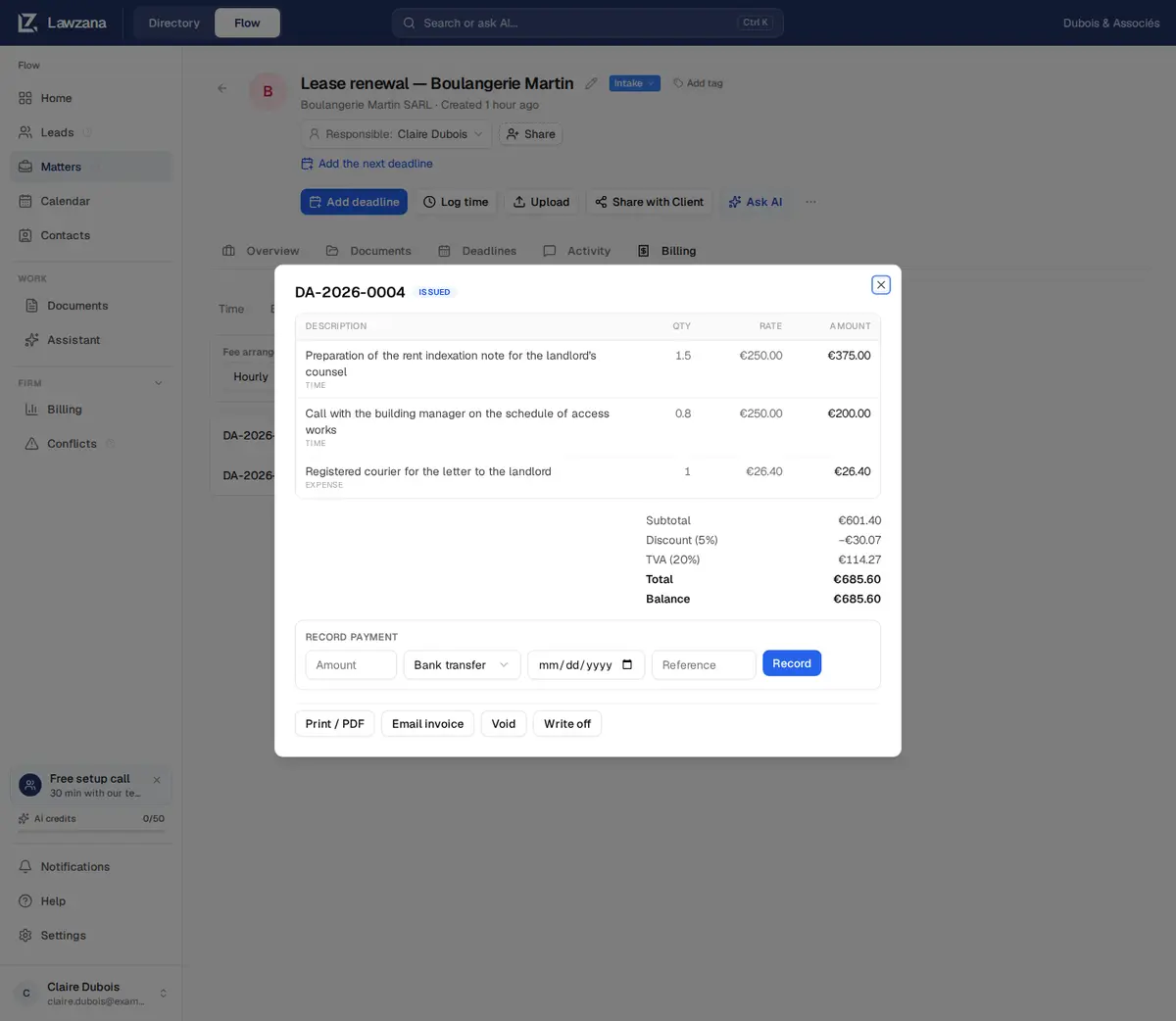
Once finalized you can:
- Print / PDF: a clean printable page with your firm's details and tax ID, the bill-to, dates, lines, totals, payment instructions and notes
- Email invoice: Flow first shows who will receive it, then emails the client a link to a secure page where they can view and download the invoice, with no login
The email goes to the billing email in the matter's Billing details; if there is none, add one in the Billing details card on the client's contact page first. It shows your firm's name as the sender, and replies go to the person who sent it. It is written in the sender's language (English, Spanish or French), and the client's page opens in English, Spanish or French, following the client's browser. You can resend at any time. A paid invoice is sent as a receipt. Drafts, void and written-off invoices can't be emailed.
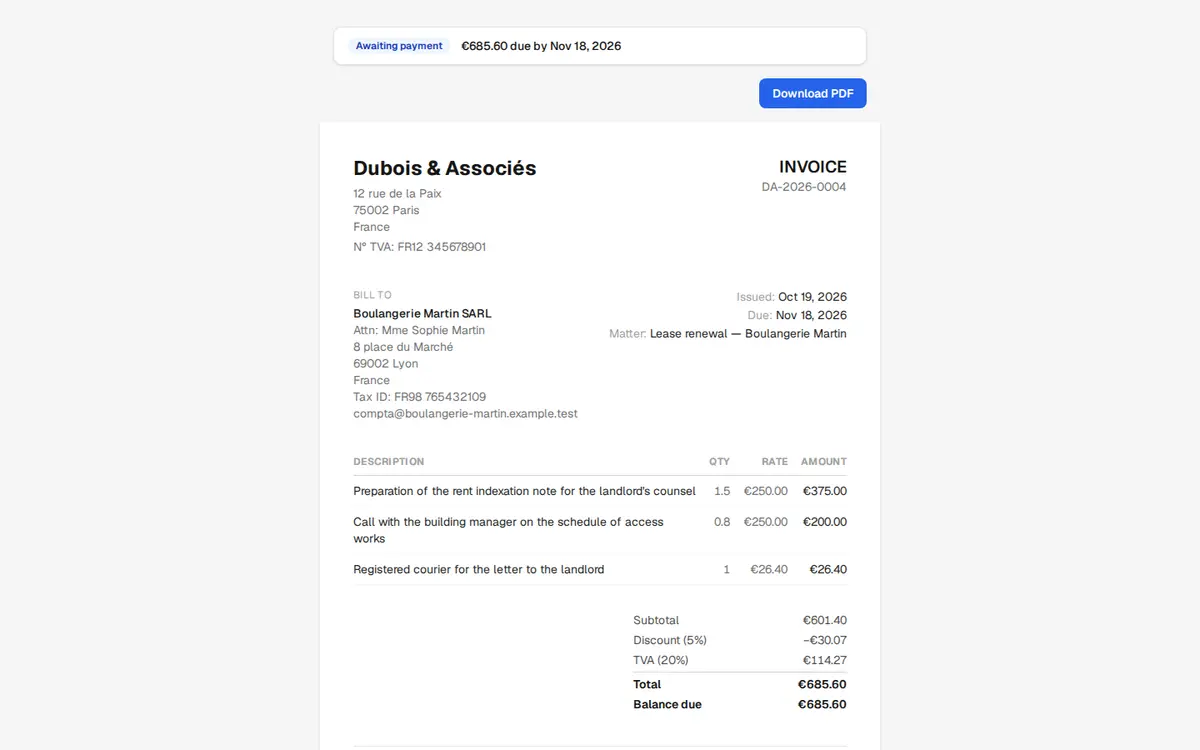
The client's page opens with the invoice's status:
| Invoice | What the client sees |
|---|---|
| Issued | Awaiting payment, with the amount and due date |
| Partly paid | The remaining balance due |
| Paid | "Paid in full. Thank you." |
| Void | "This invoice was cancelled. Nothing is due." |
| Written off | Closed: "This invoice is closed. Nothing more is due." |
Drafts are never visible to the client. Download PDF on that page opens the browser's print window, where the client chooses Save as PDF.
Recording Payments#
Flow doesn't take card payments online. Clients pay using the payment instructions printed on the invoice, and an owner or admin records each payment. On an issued or partly paid invoice, fill in Record payment and click Record:
- Amount, in the invoice's currency
- The method: Bank transfer, Cash, Card (offline) or Other
- The date the money arrived: today if left empty; dates more than a day ahead are refused
- Reference: the bank's transfer reference is ideal
Part payments are fine: the invoice becomes Partly paid and lists each payment with its reference. When payments reach the total, it becomes Paid and takes no more payments.
If you enter more than the balance due, Flow asks More than the balance due before recording it. It's usually a typo, so click Cancel; click Record anyway only if the client really paid more.
If the bank deducted fees and less arrived than was due, record the amount that arrived. Ask your accountant whether to chase the rest or write it off.
Correcting a Payment#
If you entered the wrong amount, an owner or admin clicks the × next to the payment and confirms Delete this payment?. The balance is recalculated, so a paid invoice goes back to Partly paid or Issued. Then record the right amount. Payments on a void or written-off invoice can't be changed.

Payment Reminders#
On an issued or partly paid invoice with a balance due, click Send reminder next to Email invoice. Flow shows who gets it, the invoice number and the balance, and when the last reminder went out. The email gives the balance, says when the invoice is due or how many days it is overdue, and links to the client's page. Owners and admins can also use Remind in the open-invoices list of the Billing Dashboard.
Each invoice gets at most one reminder every 24 hours, wherever it's sent from. If you try again sooner, nothing is sent and Flow tells you when the last one went out. After sending, Reminded with the date and time appears next to the button.
When a Reminder Won't Send#
- A reminder already went out in the last 24 hours. Flow says when; try again after that.
- There is no billing email. Add one in the Billing details card on the client's contact page.
- The invoice is no longer outstanding. It was paid, voided or written off since the page loaded.
- There is no Send reminder button. It only shows on issued or partly paid invoices with a balance due, and only to people who can edit the matter, not to viewers or read-only shares.
Write Off and Void#
Both are for owners and admins, both ask first, and neither can be undone.
- Write off closes an issued or partly paid invoice and gives up what is still unpaid. Use it only for money you won't collect. It still counts as billed in your reports, and the unpaid part lowers your collection rate.
- Void cancels an issued invoice that has no payment recorded. It stays in your records marked Void and its number is never reused. Its time and expenses go back to unbilled, a flat or contingency fee can be billed again, and the client's link shows the invoice as cancelled with nothing due. If a payment was recorded by mistake, delete it first.
To correct an issued invoice, void it, fix the time, expenses or billing details, and click New invoice again. The new invoice gets the next number.
Invoice Status#
| Status | Meaning |
|---|---|
| Draft | Being prepared and fully editable. Not visible to the client |
| Issued | Finalized, numbered and locked; awaiting payment |
| Partly paid | Part-paid; a balance remains |
| Paid | Fully paid |
| Written off | Closed with the unpaid balance given up |
| Void | Cancelled; its work is unbilled again |
Who Can Do What#
Owners, admins and members with access to the matter can set the fee arrangement and the matter's currency, edit a client's billing details, build, edit and delete drafts, finalize, email and send reminders. Recording or deleting payments, writing off and voiding are for owners and admins. Viewers can see invoices and open Print / PDF. See Team & Roles.
What Flow Doesn't Do Yet#
- One tax rate per invoice. No tax per line or per client, and no withholding tax. If two rates apply, issue two invoices.
- No credit notes or advance invoices. See the FAQ for workarounds.
- No online payments. Clients pay by bank transfer or other means outside Flow.
- No e-invoicing formats such as Factur-X, Verifactu or CFDI, and no recurring or batch billing.
- No editable invoice date. The issue date is the day you finalize.
- No currency conversion. See Billing in Another Currency.