

Time Tracking
Track billable and non-billable time on a matter. Flow prices each entry at the right rate, in the matter's currency, and adds it to the matter's unbilled work, ready for your next invoice.
Time tracking lives on each matter under the Billing tab → Time.
Logging Time#
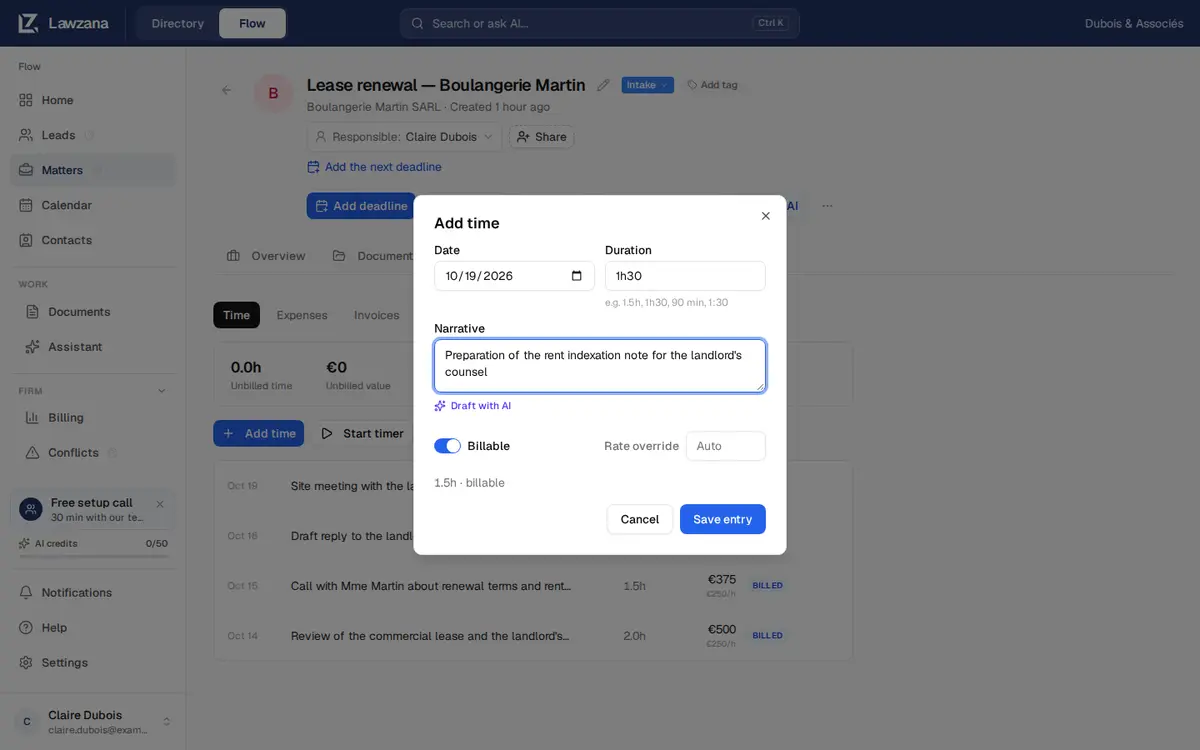
Open a matter, go to the Billing tab, and click Add time. You can also use Log time at the top of a matter, or Log time on the Home page and pick the matter. Each entry has:
- Date: today on your device by default. Dates more than a day ahead are refused
- Duration: type it the way you think of it.
1h30,1 h 30,90 min,1.5,1,5,1.5h,1:30and2 heuresall work, and a plain number means hours. One entry holds at most 14 days - Narrative: the description the client reads on the invoice
- Billable: starts on or off as set in New time billable by default (Settings → Invoicing & rates). Switch it off for internal work. Non-billable time is counted separately and never invoiced
- Rate override: leave it on Auto to use the rate rules below, or type a rate in the matter's currency.
0is allowed for pro bono work
Click Save entry. Everyone except viewers can add time. You can edit or delete your own entries until they're billed; once an entry is on an issued invoice it is locked. Owners and admins can't edit or delete a colleague's time entry from the screen, so ask the colleague to correct it.
The Timer#
Instead of entering a duration by hand, click Start timer on the matter's Time tab. You can run one timer at a time. While it runs, a bar at the top of every page shows the matter, the elapsed time and Stop & save, so you won't lose it when you move around the app.
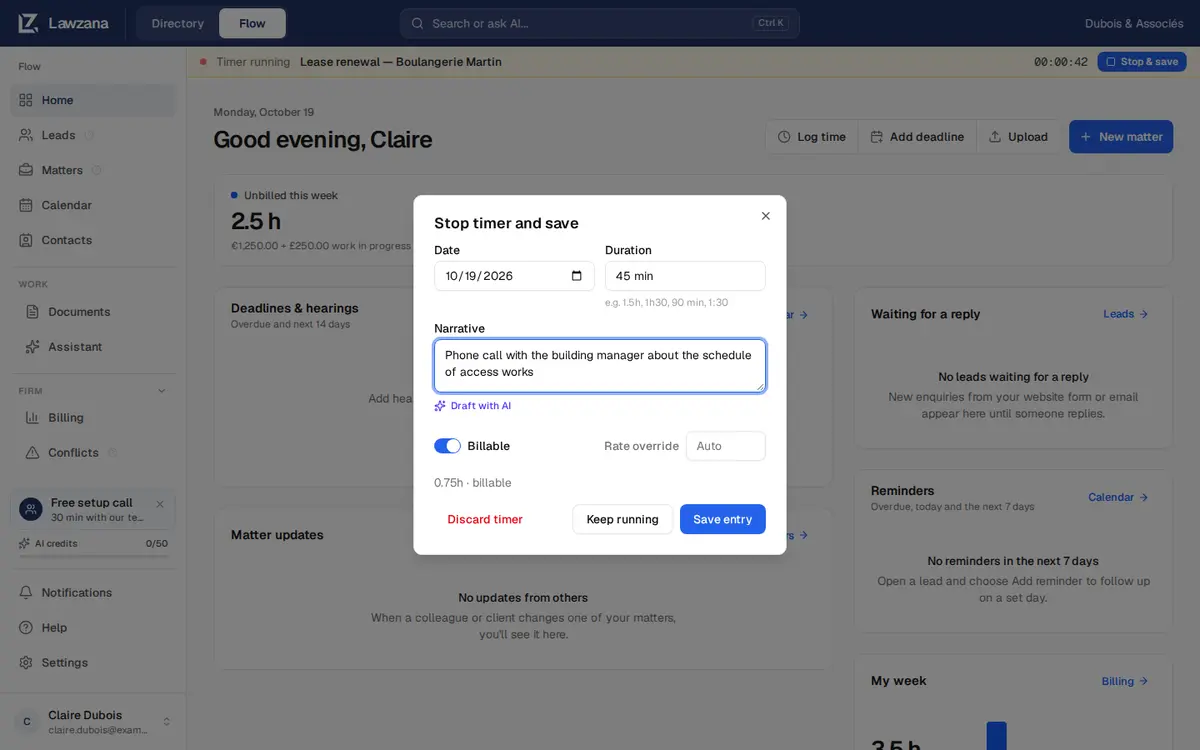
Stop & save, in the bar or on the matter, opens the Stop timer and save dialog with the elapsed time filled in. Adjust the duration, write the narrative, then:
- Save entry stops the timer and saves the entry in one step
- Keep running closes the dialog and leaves the timer going
- Discard timer asks you to confirm, then throws the time away
A timer stopped within seconds saves one minute. A timer left running for more than 14 days can't be saved as it is: enter the time you actually worked. If the timer was already stopped somewhere else (another tab, for example), nothing is saved and Flow tells you.
Draft with AI#
In the time entry dialog, type a rough note in Narrative, then click Draft with AI. Flow turns the note into a clean billing narrative, using the matter's title and description for context. You review and edit the result before saving, and entries saved with an AI draft show an AI badge. It uses AI credits.
How Rates Are Decided#
When the rate is on Auto, Flow uses the most specific rate that exists:
- A rate typed in Rate override on the entry
- The client's rate for that fee earner
- The client's default rate
- The fee earner's staff rate
- The firm's default hourly rate
Owners and admins set the firm's default rate, currency and staff rates in Settings → Invoicing & rates. Client rates are set on the client's contact page, in the Billing rates card (see Client Accounts).
A rate only applies in its own currency. Firm and staff rates are in the firm's currency, and client rates in the client's currency. If a matter bills in pounds and your rates are in euros, its time shows Needs rate and a banner says so; Flow never relabels a €250 rate as £250. Set client rates in that currency, or type a rate override on each entry.
The rate is saved on the entry when you log it, so changing a rate later doesn't reprice past time. To reprice one entry, type a rate override.
Increments and Rounding#
In Settings → Invoicing & rates you can set the Billing increment (1 min, 6 min or 15 min) and Rounding (Round up, Nearest, or No rounding). Billable time is rounded to the increment when you save the entry, and the time you actually worked is kept as well. At 6 minutes rounded up, 7 minutes bills as 0.2 hours.
Entry Status#
| Status | Meaning |
|---|---|
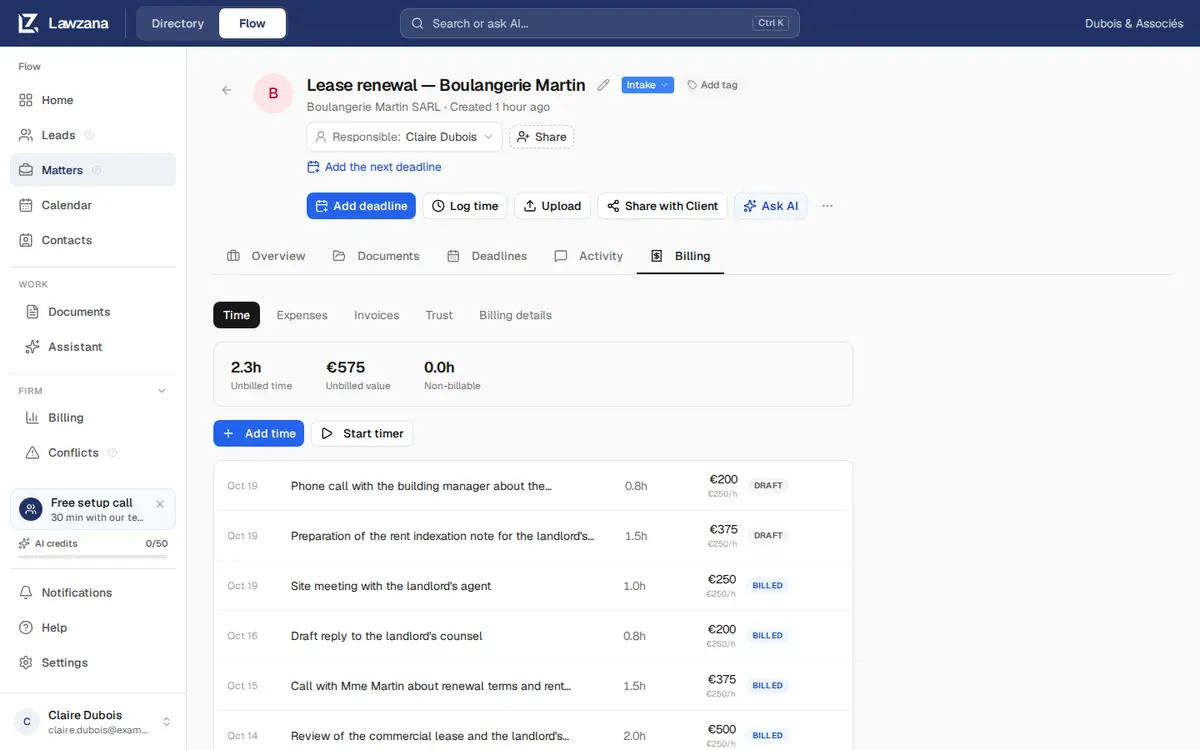
| Draft | Logged, not invoiced yet. It goes on the next invoice if it is billable, has a rate and is in the matter's currency. This has nothing to do with a draft invoice |
| Billed | On an issued invoice and locked. If that invoice is voided, the entry goes back to unbilled |
Flow also has Approved and Written off statuses, but there is no button to set them in the app, so you will rarely see them. Approved time bills like Draft time.
Unbilled Work#
The Time tab shows running totals for the matter:
- Unbilled time: billable hours not yet on an issued invoice, after rounding
- Unbilled value: what that time is worth at the rates saved on each entry. Time recorded in another currency is shown next to it, never added in
- Non-billable: hours logged as non-billable
Unbilled time and expenses together are the matter's work in progress (WIP), which an invoice is built from. See Invoicing.
Looking for how to pay for Lawzana Flow itself, your subscription and seats? That's covered in Billing & Plans.