

تتبع الوقت
تتبع الوقت القابل للفوترة وغير القابل للفوترة في أي قضية. يقوم Flow بتسعير كل إدخال بالسعر المناسب، وبعملة القضية، ويضيفه إلى الأعمال غير المفوترة للقضية، ليكون جاهزاً لفاتورتك التالية.
يوجد تتبع الوقت داخل كل قضية تحت علامة التبويب Billing (الفوترة) ← Time (الوقت).
تسجيل الوقت#
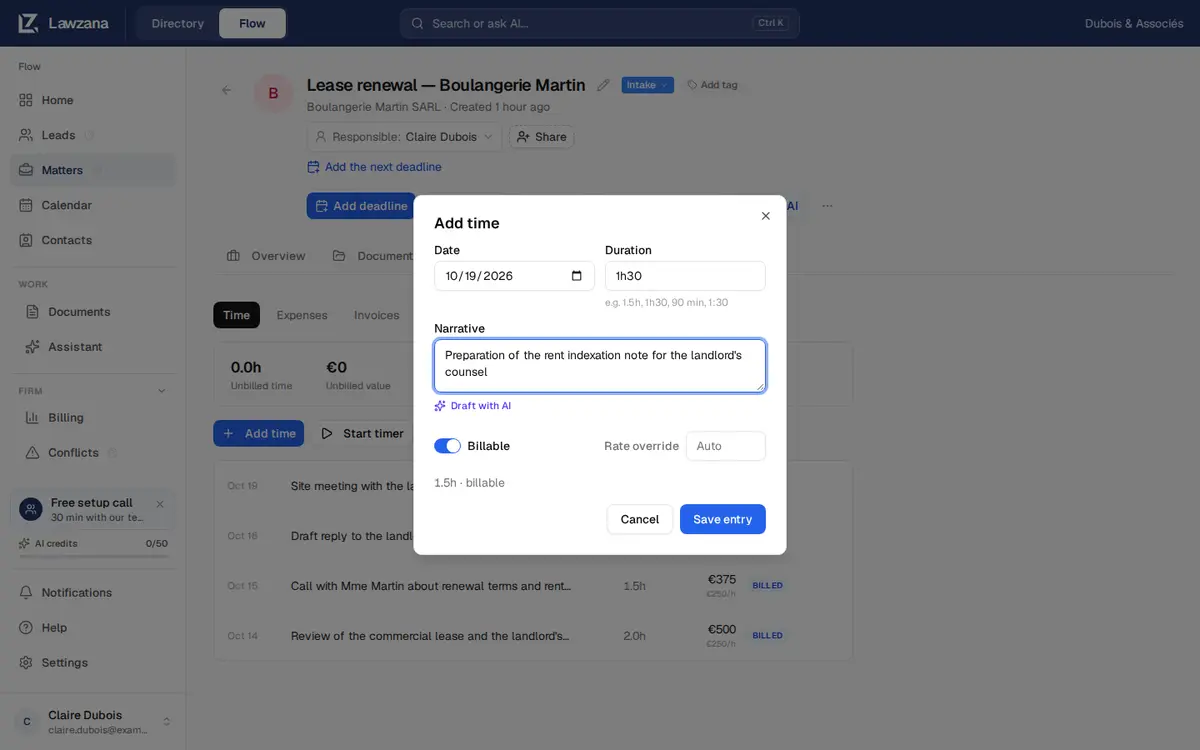
افتح القضية، وانتقل إلى علامة التبويب Billing، ثم انقر على Add time (إضافة وقت). يمكنك أيضاً استخدام Log time (تسجيل الوقت) في أعلى صفحة القضية، أو Log time في الصفحة الرئيسية واختيار القضية. يتضمن كل إدخال ما يلي:
- Date (التاريخ): تاريخ اليوم على جهازك بشكل افتراضي. يتم رفض التواريخ التي تزيد عن يوم واحد في المستقبل
- Duration (المدة): اكتبها بالطريقة التي تناسبك. الصيغ
1h30، و1 h 30، و90 min، و1.5، و1,5، و1.5h، و1:30، و2 heuresتعمل جميعها، والرقم المجرد يعني الساعات. يستوعب الإدخال الواحد 14 يوماً كحد أقصى - Narrative (الوصف): الوصف الذي يقرأه العميل في الفاتورة
- Billable (قابل للفوترة): يبدأ مفعلاً أو معطلاً وفقاً للإعداد في New time billable by default (الوقت الجديد قابل للفوترة افتراضياً) ضمن (Settings → Invoicing & rates). قم بتعطيله للأعمال الداخلية. يُحسب الوقت غير القابل للفوترة بشكل منفصل ولا تتم فوترته أبداً
- Rate override (تجاوز السعر): اتركه على Auto (تلقائي) لتطبيق قواعد الأسعار الموضحة أدناه، أو اكتب سعراً بعملة القضية. يُسمح بإدخال
0للأعمال التطوعية (pro bono)
انقر على Save entry (حفظ الإدخال). يمكن للجميع إضافة الوقت باستثناء أصحاب صلاحية العرض فقط (viewers). يمكنك تعديل أو حذف إدخالاتك الخاصة حتى تتم فوترتها؛ وبمجرد إدراج الإدخال في فاتورة صادرة يتم قفله. لا يمكن للمالكين (Owners) والمسؤولين (Admins) تعديل أو حذف إدخال وقت خاص بزميل من الشاشة، لذا اطلب من الزميل تصحيحه.
المؤقت#
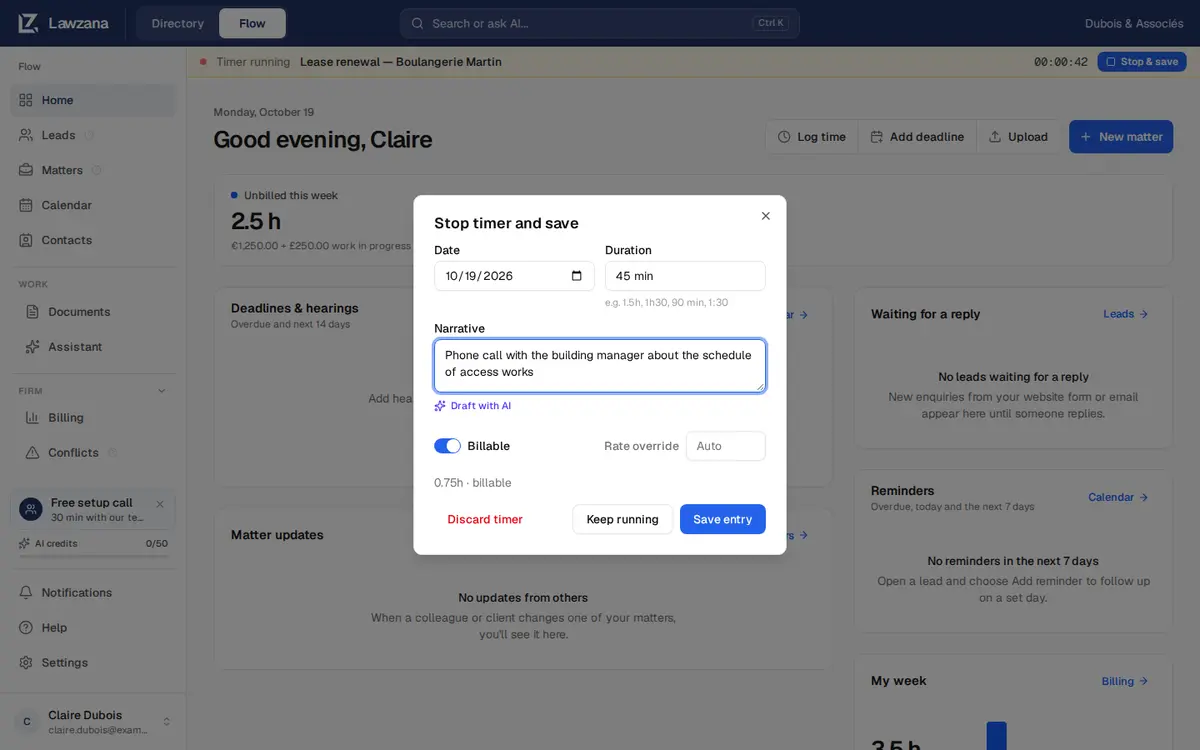
بدلاً من إدخال المدة يدوياً، انقر على Start timer (بدء المؤقت) في علامة التبويب Time الخاصة بالقضية. يمكنك تشغيل مؤقت واحد فقط في كل مرة. وأثناء تشغيله، يعرض شريط في أعلى كل صفحة القضية، والوقت المنقضي، وزر Stop & save (إيقاف وحفظ)، حتى لا تفقده أثناء تنقلك داخل التطبيق.
يؤدي النقر على Stop & save، سواء في الشريط أو داخل القضية، إلى فتح نافذة Stop timer and save (إيقاف المؤقت وحفظه) مع ملء الوقت المنقضي تلقائياً. اضبط المدة، واكتب الوصف، ثم:
- Save entry (حفظ الإدخال): يوقف المؤقت ويحفظ الإدخال في خطوة واحدة
- Keep running (متابعة التشغيل): يغلق النافذة ويترك المؤقت قيد التشغيل
- Discard timer (تجاهل المؤقت): يطلب منك التأكيد، ثم يتخلص من الوقت المسجل
إذا تم إيقاف المؤقت في غضون ثوانٍ، فإنه يحفظ دقيقة واحدة. المؤقت الذي يُترك قيد التشغيل لأكثر من 14 يوماً لا يمكن حفظه كما هو: أدخل الوقت الذي عملت فيه فعلياً. وإذا كان المؤقت قد تم إيقافه بالفعل في مكان آخر (علامة تبويب أخرى مثلاً)، فلن يتم حفظ أي شيء وسيخطرك Flow بذلك.
الصياغة بالذكاء الاصطناعي#
في نافذة إدخال الوقت، اكتب ملاحظة أولية في حقل Narrative (الوصف)، ثم انقر على Draft with AI (صياغة بالذكاء الاصطناعي). يقوم Flow بتحويل الملاحظة إلى وصف فوترة منقح، مستخدماً عنوان القضية ووصفها لفهم السياق. يمكنك مراجعة النتيجة وتعديلها قبل الحفظ، وتظهر الإدخالات المحفوظة باستخدام مسودة الذكاء الاصطناعي شارة AI. تستهلك هذه الميزة رصيد الذكاء الاصطناعي (AI credits).
كيف يتم تحديد الأسعار#
عند ضبط السعر على Auto (تلقائي)، يطبق Flow السعر الأكثر تخصيصاً وتحديداً من بين الخيارات المتاحة:
- السعر المكتوب في حقل Rate override في الإدخال
- سعر العميل المخصص لمسؤول الملف (fee earner)
- السعر الافتراضي للعميل
- سعر الموظف المحدد لمسؤول الملف
- سعر الساعة الافتراضي للشركة
يقوم المالكون والمسؤولون بضبط السعر الافتراضي للشركة وعملتها وأسعار الموظفين في Settings → Invoicing & rates. وتُحدد أسعار العميل في صفحة جهة اتصال العميل، ضمن بطاقة Billing rates (أسعار الفوترة) (راجع حسابات العملاء).
لا يسري السعر إلا بعملته الخاصة فقط. تكون أسعار الشركة والموظفين بعملة الشركة، وأسعار العملاء بعملة العميل. إذا كانت القضية تُفوتر بالجنيه الإسترليني وكانت أسعارك باليورو، فسيظهر على وقتها Needs rate (يتطلب سعراً) مع شريط تنبيه يوضح ذلك؛ لا يقوم Flow أبداً بإعادة تسمية سعر 250 يورو ليصبح 250 جنيهاً إسترلينياً. حدد أسعار العميل بتلك العملة، أو اكتب سعراً مخصصاً في حقل التجاوز لكل إدخال.
يتم حفظ السعر في الإدخال عند تسجيله، لذا فإن تغيير السعر لاحقاً لا يؤدي إلى إعادة تسعير الأوقات السابقة. لإعادة تسعير إدخال واحد، اكتب سعراً بديلاً في حقل التجاوز.
الزيادات التدريجية والتقريب#
في Settings → Invoicing & rates، يمكنك ضبط Billing increment (الزيادة التدريجية للفوترة: دقيقة واحدة، أو 6 دقائق، أو 15 دقيقة) وRounding (التقريب: تقريب للأعلى Round up، أو للأقرب Nearest، أو بدون تقريب No rounding). يتم تقريب الوقت القابل للفوترة وفقاً لمعدل الزيادة عند حفظ الإدخال، مع الاحتفاظ بالوقت الفعلي الذي عملت فيه أيضاً. فعند اختيار 6 دقائق مع التقريب للأعلى، تُفوتر 7 دقائق على أنها 0.2 ساعة.
حالة الإدخال#
| الحالة | المعنى |
|---|---|
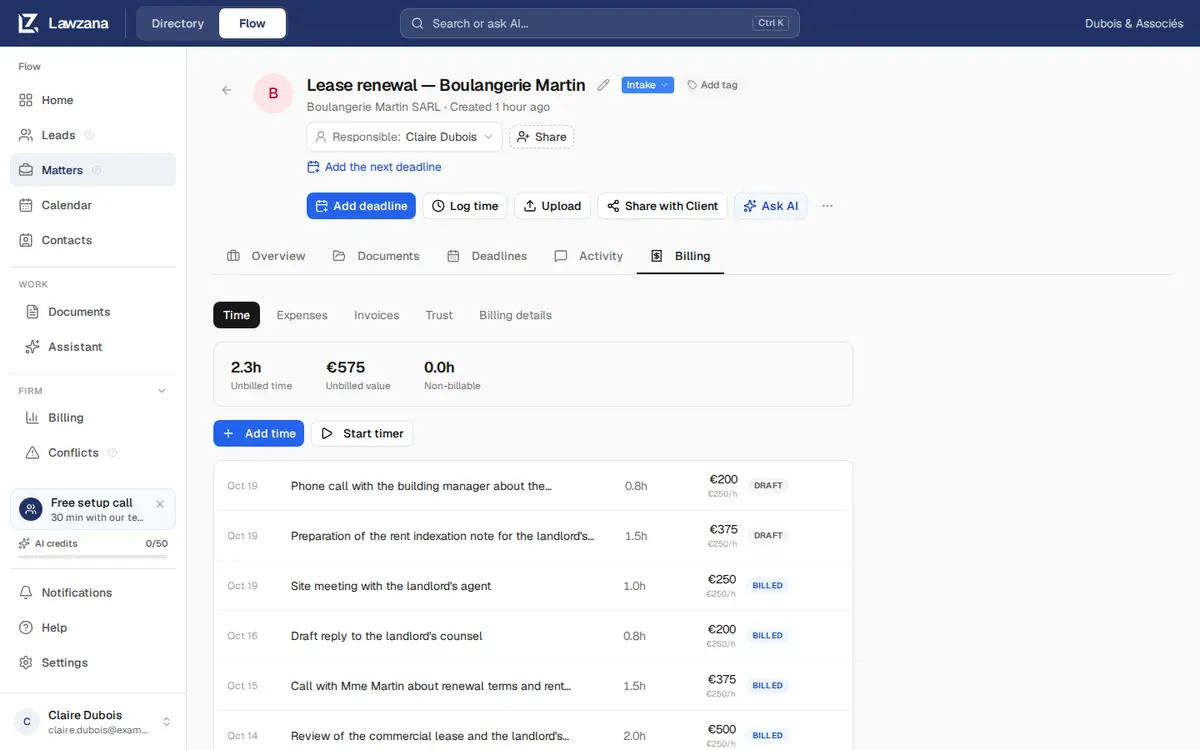
| Draft (مسودة) | مسجل، ولم تتم فوترته بعد. يُدرج في الفاتورة التالية إذا كان قابلاً للفوترة، وله سعر، ومسجلاً بعملة القضية. لا علاقة لهذا بمسودة الفاتورة |
| Billed (مفوتر) | مدرج في فاتورة صادرة ومقفل. إذا أُلغيت تلك الفاتورة، يعود الإدخال إلى حالة غير مفوتر |
يتضمن Flow أيضاً حالتي Approved (معتمد) وWritten off (مشطوب)، ولكن لا يوجد زر لتعيينهما في التطبيق، لذا نادراً ما ستراهما. يُفوتر الوقت المعتمد تماماً مثل وقت المسودة.
الأعمال غير المفوترة#
تعرض علامة التبويب الوقت إجماليات تراكمية للقضية:
- Unbilled time (الوقت غير المفوتر): الساعات القابلة للفوترة التي لم تُدرج بعد في فاتورة صادرة، بعد التقريب
- Unbilled value (القيمة غير المفوترة): قيمة ذلك الوقت وفقاً للأسعار المحفوظة في كل إدخال. يُعرض الوقت المسجل بعملة أخرى بجانبه، ولا يُضاف إليه أبداً
- Non-billable (غير قابل للفوترة): الساعات المسجلة على أنها غير قابلة للفوترة
يشكل الوقت غير المفوتر والمصروفات معاً الأعمال قيد التنفيذ (WIP) للقضية، والتي يتم إنشاء الفاتورة بناءً عليها. راجع الفوترة.
هل تبحث عن كيفية الدفع مقابل Lawzana Flow نفسه، واشتراكك، والمقاعد؟ تم توضيح ذلك في الفوترة والخطط.