

工时记录
跟踪案件的计费与非计费工时。Flow 会按照正确的费率和案件币种为每项记录计算金额,并将其计入案件的未开票工作中,以便随时生成下一张发票。
工时记录位于每个案件的账务标签页 → 工时下。
记录工时#
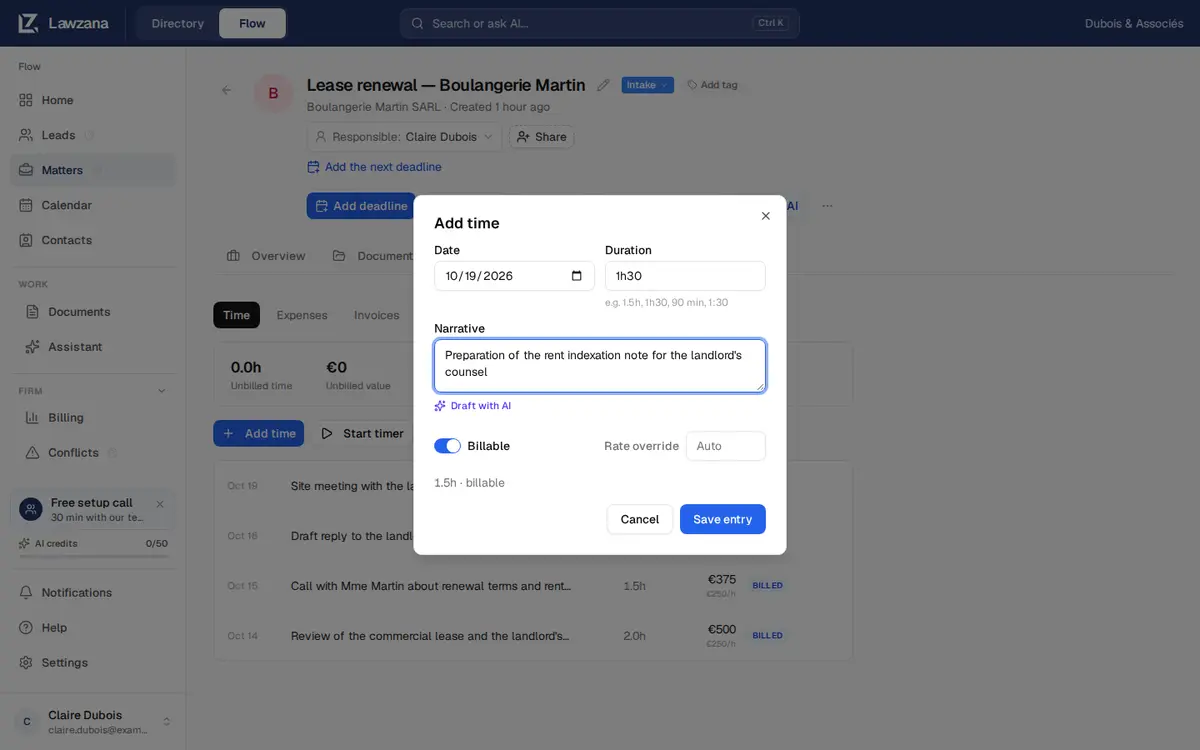
打开一个案件,进入账务标签页,然后点击添加工时。您也可以使用案件顶部的记录工时,或在首页点击记录工时并选择对应案件。每项记录包含以下内容:
- 日期:默认为您设备上的当天日期。不支持选择超过当前日期一天以上的未来日期
- 时长:按照您的习惯直接输入即可。
1h30、1 h 30、90 min、1.5、1,5、1.5h、1:30和2 heures均可识别,直接输入纯数字则表示小时。单次记录的时长最多为 14 天 - 工作描述:客户在发票上看到的描述内容
- 计费:初始状态(开或关)由设置 → 发票与费率中的新工时默认计费决定。内部工作请将其关闭。非计费工时会单独统计,绝不会计入发票
- 费率替换:保留为自动即可使用下文的费率规则,或者以案件币种手动输入费率。法律援助/公益案件(Pro Bono)允许输入
0
点击保存记录。除只读用户(Viewers)外,所有人均可添加工时。在开具发票之前,您可以随时编辑或删除自己创建的记录;一旦记录已开具在发票上,该记录将被锁定。所有者(Owners)和管理员(Admins)无法直接在界面上编辑或删除同事的工时记录,因此请联系该同事自行修改。
计时器#
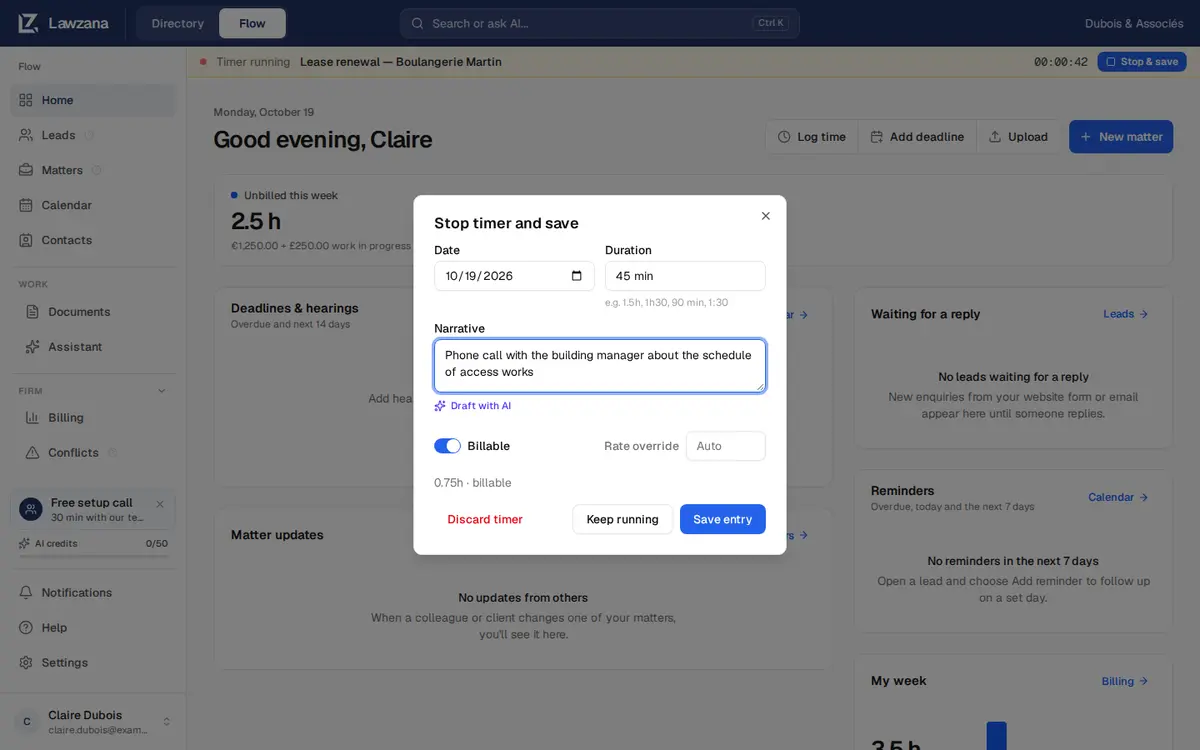
无需手动输入时长,只需在案件的工时标签页上点击启动计时器即可。您一次只能运行一个计时器。在计时器运行期间,每个页面顶部都会显示一个提示栏,展示案件名称、已耗费时间以及停止并保存按钮,确保您在应用内切换页面时不会丢失计时进度。
无论是在顶部提示栏还是案件页面中点击停止并保存,都会打开停止计时器并保存对话框,并自动填入已耗费的时间。您可以调整时长、填写工作描述,然后执行以下操作:
- 保存记录:一步完成停止计时器并保存工时记录
- 继续计时:关闭对话框,计时器保持运行
- 舍弃计时器:系统会提示您确认,确认后将放弃本次计时
在数秒内停止的计时器将按一分钟保存。连续运行超过 14 天的计时器无法直接原样保存:请手动输入您的实际工作时间。如果计时器已经在其他地方被停止(例如另一个浏览器标签页),系统将不会保存任何内容,并且 Flow 会弹出提示。
使用 AI 撰写#
在工时记录对话框中,于工作描述中输入简要备注,然后点击使用 AI 撰写。Flow 会结合案件的标题和描述作为背景信息,将备注转化为规范的账单描述。您可以在保存前对结果进行查看和编辑,由 AI 撰写生成的记录会带有 AI 徽章。该功能会消耗 AI 额度。
费率判定规则#
当费率设为自动时,Flow 会按以下优先级采用最适用的费率:
- 记录中在费率替换处手动输入的费率
- 针对该创收人员(Fee Earner)设置的客户专属费率
- 该客户的默认费率
- 该创收人员的员工费率
- 律所默认小时费率
所有者和管理员可在设置 → 发票与费率中设置律所默认费率、币种以及员工费率。客户费率在客户联系人页面的账务费率卡片中进行设置(参见客户账户)。
费率仅在与其相符的币种下生效。律所和员工费率使用律所币种,客户费率使用客户币种。如果案件以英镑计费,而您的费率是欧元,则其工时会显示需要费率,并出现提示横幅;Flow 绝不会直接将 €250 的费率换标为 £250。请使用对应币种设置客户费率,或在每项记录上手动输入费率替换。
费率会在记录工时时直接保存在该条记录中,因此日后修改费率不会追溯更改过去的工时金额。如需重新计算某条记录的费率,请手动输入费率替换。
计费步长与取整#
在设置 → 发票与费率中,您可以设置计费步长(1 分钟、6 分钟或 15 分钟)和取整规则(向上取整、就近取整或不取整)。计费工时会在保存记录时按步长取整,同时您实际工作的时间也会被完整保留。以 6 分钟向上取整为例,实际工作 7 分钟将按 0.2 小时计费。
记录状态#
| 状态 | 含义 |
|---|---|
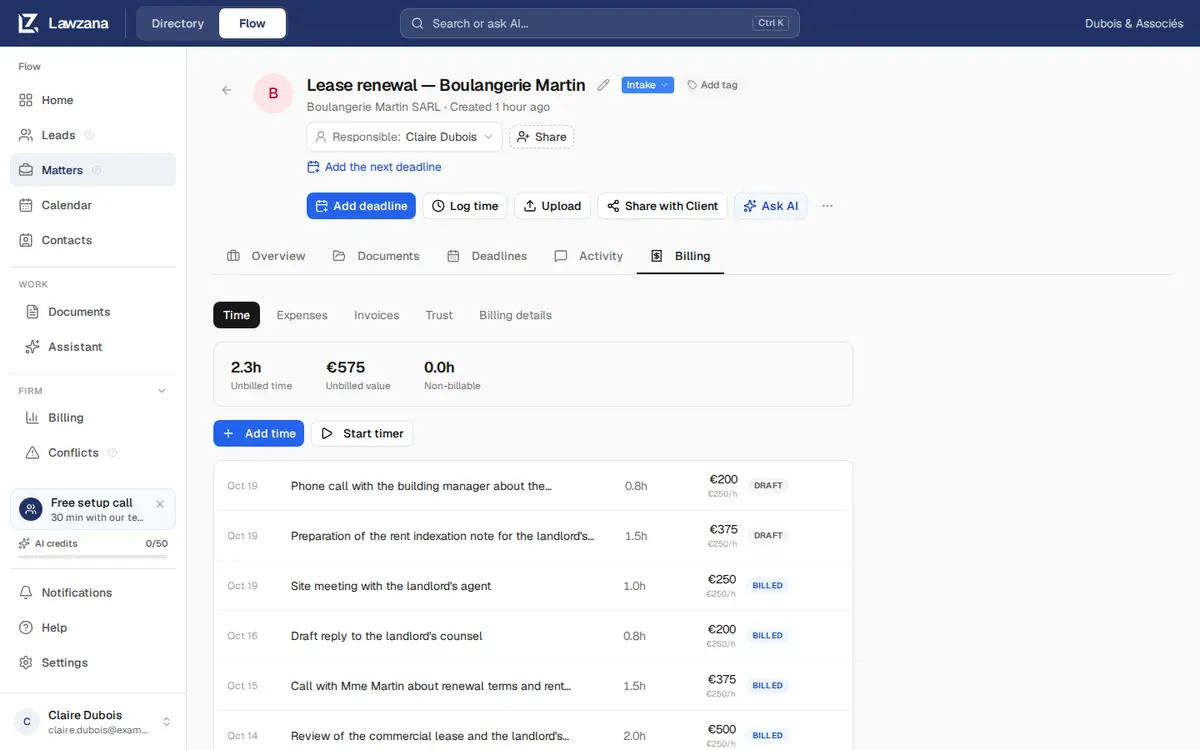
| 草稿 | 已记录,尚未开票。如果属于可计费、已配置费率且币种与案件币种一致,则会进入下一张发票。此状态与发票草稿无关 |
| 已开票 | 已计入正式开具的发票中并已锁定。如果该发票被作废,记录将恢复为未开票状态 |
Flow 还包含已审批和已销账状态,但应用中没有直接设置这些状态的按钮,因此您极少会看到它们。已审批工时的计费方式与草稿工时相同。
未开票工作#
工时标签页会显示案件的动态汇总数据:
- 未开票工时:取整后尚未计入正式发票的可计费工时
- 未开票金额:按每项记录保存的费率计算出的工时价值。以其他币种记录的工时会单独显示在旁边,绝不会直接相加
- 非计费:记录为非计费的工时
未开票工时与垫付费用共同构成案件的在制品(WIP),发票即由此生成。参见发票开具。
如需了解如何支付 Lawzana Flow 软件本身的费用、订阅管理及席位购买,请参阅账务与套餐。